ChatGPT ads can now run from inside your Shopify admin
your product title becomes the ad copy
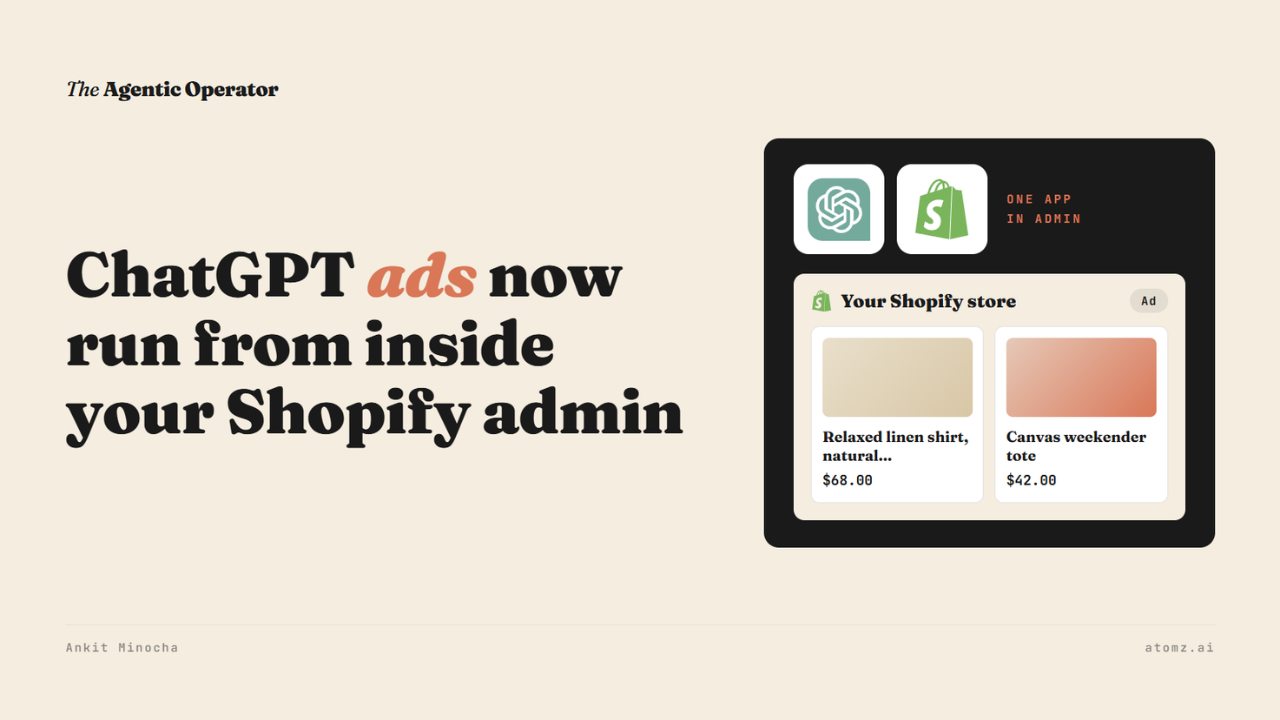
You can now run ChatGPT ads from inside your Shopify admin.
OpenAI put a ChatGPT Ads app in the Shopify App Store last month. It syncs your products to ChatGPT Ads Manager, builds ads from them and tracks how they perform.
US merchants got it on September 16. Other countries where ChatGPT ads run got it a week later. The app is free and you pay for the ads.

Source: Shopify App Store
A few months back, I shared that ChatGPT ads were open to every merchant, along with what OpenAI's 100-product sample review checks. Back then, you had to upload your product feed to Ads Manager yourself. Now the app handles it.
What the app does in your admin
I installed it on a store to see what setup asks for.
Installing lets the app view your customer and staff data. It can also view and edit store data like products, marketing and analytics. Its first screen already shows a sample ad made from your products, with a Connect Account button.

Connecting takes three steps:
Sign in with your ChatGPT login
Pick an Ads Manager account, or create a new one right there
Choose a pixel, or let the app create and connect one
Once connected, the app asks you to set up billing before any ad can run.

Then the products sync. On the store, the Products section showed the feed was syncing. OpenAI says the time depends on catalog size.
Creating an ad takes one screen:
A budget, with presets of $25, $100 and $200 a day
An optimization event, the action you want it to drive, from a page view up to a purchase
A target country
An ad type, either all products, a single product or a webpage
Spend can vary by day. The app says it won't go over 7x your daily budget across a week.

The pixel it connected appears in Settings > Customer events, listed as Server and Web.

Source: Shopify admin
Basic results show in Shopify. The full reporting stays in Ads Manager.
The ad is built from your product data
You don't write ad copy for product ads.
The ad preview next to the form builds a sponsored carousel from the store's products. Each card shows the product image, title and price.
That's the product carousel, one of the ChatGPT ad formats I shared last month.
Your product title is the headline. Whatever is in it, mistakes included, shows up in the ad.
Which product appears depends on what's being discussed in the chat and how well your product details fit it. OpenAI says product feed ads have been among the strongest performers in its ad program so far.
This ad feed is separate from organic ChatGPT results, which read Shopify Catalog.
Ads Manager added a review status to its Products tab last week. It shows where each product is in review and why one got rejected.
Four checks for you to do
1/ Read the titles of the products you'd advertise as if they were ad headlines. Put what the product is in the first few words, because the card cuts off long titles.
2/ Open Settings > Customer events and check that the ChatGPT pixel shows Server and Web. When you create the ad, pick the optimization event that matches your goal.
3/ Once the sync finishes, compare the number of products the app synced with what you sell. Check the review status in Ads Manager for anything rejected.
4/ Fill in the category and its attributes on those products. Those fields give a shopper's question more to match.
ChatGPT ads are one app away in your Shopify admin - what a shopper sees in them still comes from your catalog.
The Shopify Catalog audit shows what an AI agent reads from your catalog and how you compare with competitors for the same shopper queries. Audit now →
Atomz AI fills in category attributes across your catalog, so the products you advertise carry the details shoppers ask about. Get in touch for a demo.
- Ankit
If this was useful, the next one will be too.
Weekly. Free.
Unsubscribe with one click.
