How to check if your PDP would survive a skeptical buyer
Claude prompt to find what to do better
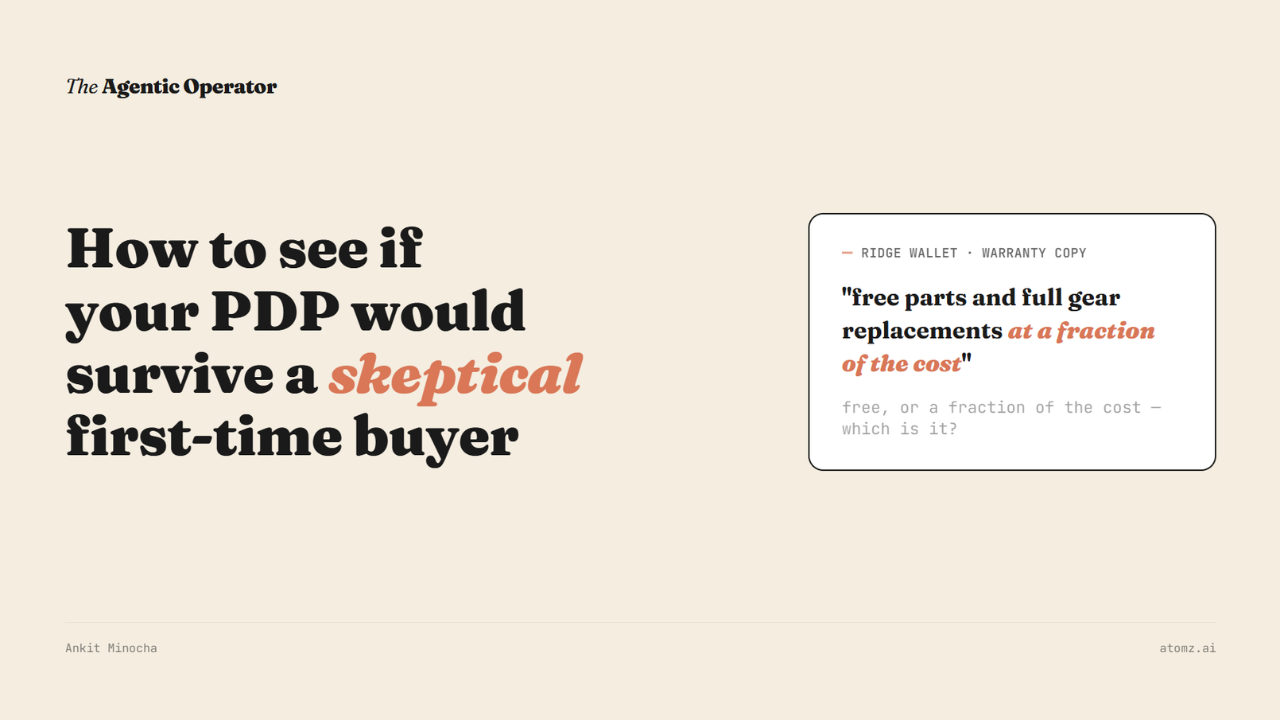
Ridge Wallet has over 51,000 reviews and an average rating of 4.8.
A skeptical buyer might ask, “What happens when this breaks?”
Their own product page never answers that directly - it leads to a warranty program.
A product page is read twice nowadays, once by a person deciding whether to buy, once by an AI agent extracting whatever it can confirm as fact on the page.
Here's a prompt that finds that gap directly, and then hands you the fix.
The exact prompt I used:
Take {product_url}. Read it three ways: what a first-time buyer takes away, what an AI assistant can confidently extract as fact, and the single fact most likely to make someone leave. Then rewrite the weakest section to fix it.
Run it directly from here → Open in Claude
What comes back:
What a first-time buyer actually takes away from the page
What an AI agent can confirm as fact, and what it can't
The one gap most likely to lose the sale
A rewritten version of the weakest section
I ran it on Ridge's own page.
What a buyer takes away: premium metal wallet, RFID-blocking, holds 1 to 12 cards, backed by a lifetime-style warranty, 4.8 stars across 51,000+ reviews.
What an agent can confirm: price, materials, dimensions, card capacity, warranty name, return window - all stated plainly, nothing inferred.

Source: Ridge Wallet
The gap: the copy uses "free" and "at a fraction of the cost" - without stating what's actually free vs. paid on the PDP itself. So a buyer trying to resolve their objection gets ambiguity instead of an answer, right at the point they'd otherwise convert.
The suggestion I got was to update that particular section.
One Claude Skill for all Shopify operations
This runs on the Agentic Operator skill, covering catalog, PDP content, segmentation, retention, ads, analytics, merchandising, and more, all in one Claude skill.

The setup for Claude is two connections, both from Claude's directory (go to Customize / Settings → Connectors, then search and add). Then, add the skill file.
Create a project in Claude for your Shopify operations
Add the Shopify connector and authenticate with your store
Klaviyo, same way
Download the skill file - Get it here
Add it under Customize → Skills → Add → Upload a skill
Type /the-agentic-operator, then ask anything in plain text.
Here’s a video that I recorded while testing the Shopify connector:
This same gap exists today for an AI agent in over 70% of Shopify catalogs.
- Ankit
If this was useful, the next one will be too.
Weekly. Free.
Unsubscribe with one click.
